How Can We Help?
Windows Sign installation
- Login to the computer as Administrator.
- Before you start the installation process it’s recommended to set the following on your device:
- Set the background color of the desktop to black:
- Right click on the desktop and select “Personalize”.
- For Background select “Solid color” and click on the black square.
- Close the window by clicking on the “X” at the top right.
- If you are going to user automatic windows updates it is recommended to adjust the “active hours” to one hour before the sign regular working hour and one hour after:
- Go to “start” type “windows update settings” and open the system settings window.
- Click “Change active hours” button
- Click “change” near the “Current active hours…..”
- Adjust the “Start time” and “End time”, and click “Save”.
- Set the background color of the desktop to black:
- Download the installation wizard →

If you get the message: “Google Drive can’t scan this file for viruses” click the “Download anyway” button.
Unzip the downloaded file password is: SignMainSetup - If you downloaded on a different device copy/move the file the player PC.
- Run the file you extracted “SignMainSetup.exe”
- Depends on your computers configuration you may get the following window:
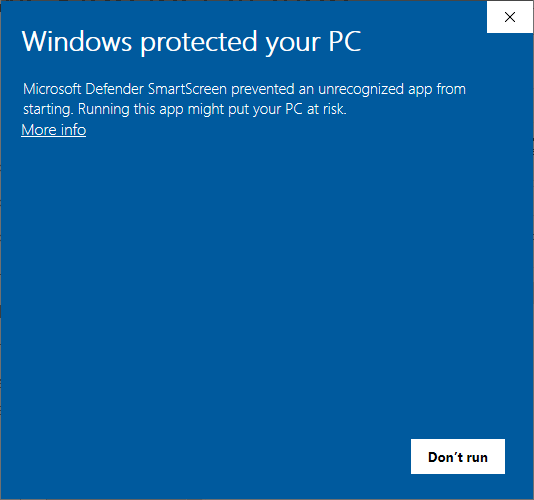
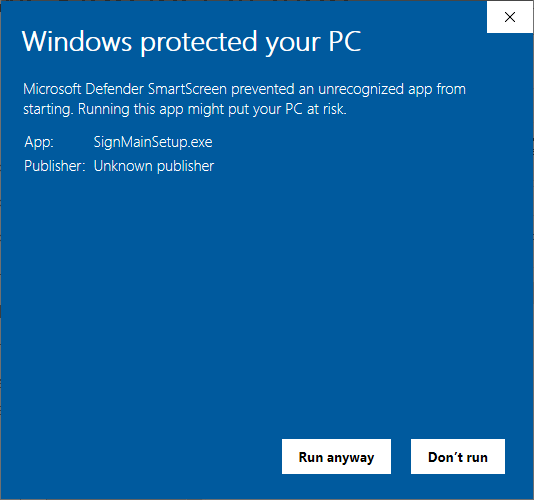
- If you get that windows press “More info” and you’ll get this window:
- Select the folder for the installation (it’s suggested to keep the default).
- Click “Run anyway”.
- You’ll get the following window:
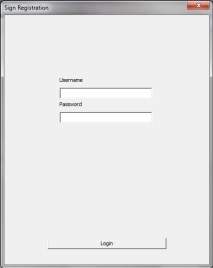
- Enter the Username and Password and press “Login”.
- If you got a login error; verify your username and password and try again. If you keep getting login error; contact us as your login information may not be accurate.
- You’ll get the following window (the name list will be different):
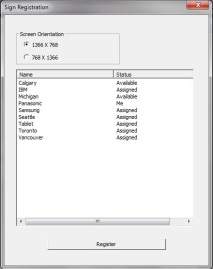
- From the list of licenses click on the license you want to use
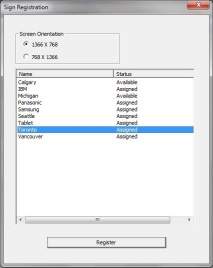
- Status may be “Available” “Assigned” or “Me” you can select the license you want regardless of its status.
- The meaning of the status:
- “Available” – License that wasn’t used before.
- “Assigned” – License that was assigned or is assigned to another Sign.
- “Me” – License that was assigned already to this device.
- The meaning of the status:
- If you select license of another sign it will transfer it to your current Sign and the other Sign will lose its license.
- If the license is assigned already you’ll get the following window:
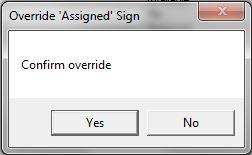
- If you would like to use it click “Yes” on the request, otherwise click “No” and select a different license to use.
- Press “Register”
- Depends on your computers configuration you may get the following window:
- The wizard will finish the installation, registration and start the Sign.
- Restart the PC. Depends on the content the Sign has to download it may take few minutes until the full content will be shown.