How Can We Help?
Android Sign installation
- Before you start the installation you need to make sure you have connection to the internet.
- Allow installation from “Unknown sources”. Usually the setting is in: Settings → General → Security → Check the “Unknown Sources (Allow installation of apps from sources other than the Play Store”.
- Download the app →

If you get the message: “Google Drive can’t scan this file for viruses” click the “Download anyway” button
If you get the message “This type of file can harm your device. Do you want to keep signmain.apk anyway?” click “OK”). - Once the download is complete:
- Go to “My Files” and you will see a new file (“SignMain”) in the “Download” folder.
- Run it and you’ll get the following window:

- Press “Install”.
- Once the installation finished you’ll see the following window:

- Press “Done”.
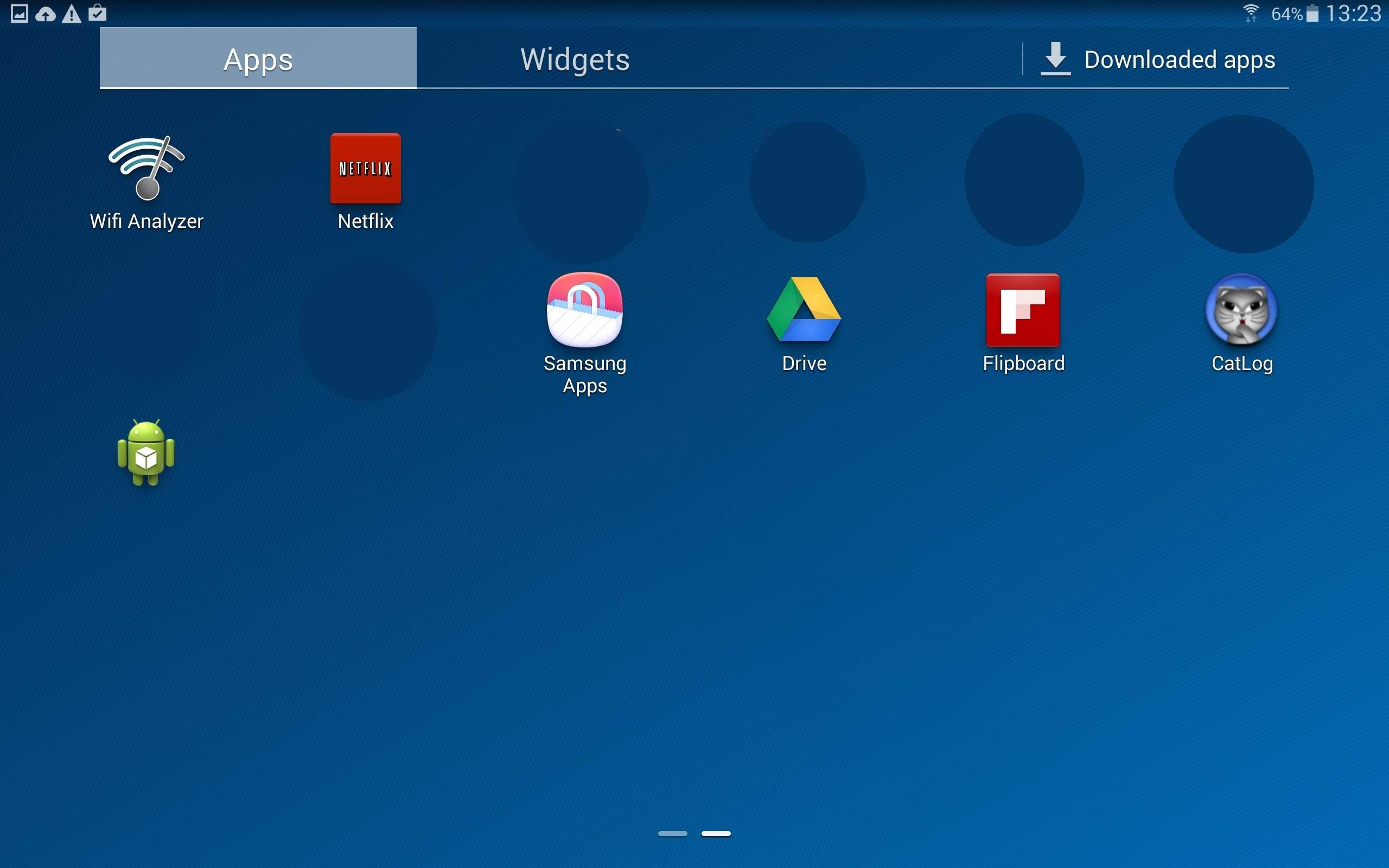
- Go to the apps pages and copy the SignMain App (normally will be at the end of the list) to the home page (the main screen) by long press on the App icon.
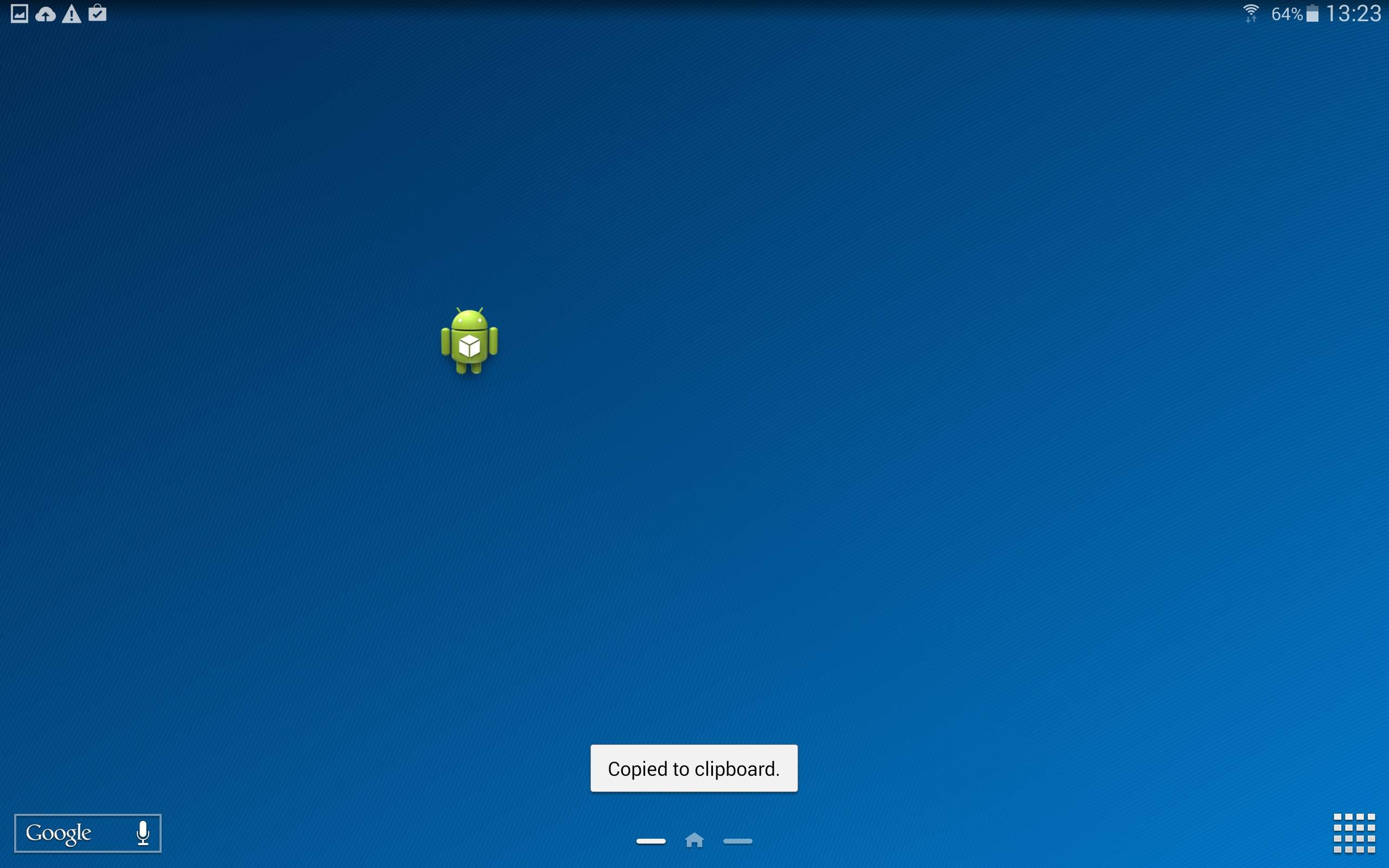 →
→ 
- Press shortly on the App in order to run it and you’ll get the following screen:

- Enter the Username and Password and press “Login”.
- If you got a login error; verify your username and password and try again.
- You’ll get the following window (the name list will be different):

- From the list of licenses click on the license you want to use and press ‘next’.
- Status may be “Available” “Assigned” or “Me” you can select the license you want regardless of its status.
- The meaning of the status:
- “Available” – License that wasn’t used before.
- “Assigned” – License that was assigned or is assigned to another Sign.
- “Me” – License that was assigned already to this device.
- If you select license of another sign it will transfer it to your current Sign and the other Sign will lose its license.
- The meaning of the status:
- If you will need to make other security permission adjustments to enable widgets you will get instructions what to do on the screen otherwise you’ll get the following window and press ‘next’:

- Select the screen orientation you want to use (you change it later on) and press ‘finish’.

- The wizard will finish the installation, registration and start the Sign.
Depends on the content the Sign has to download it may take few minutes until the full content will be shown.